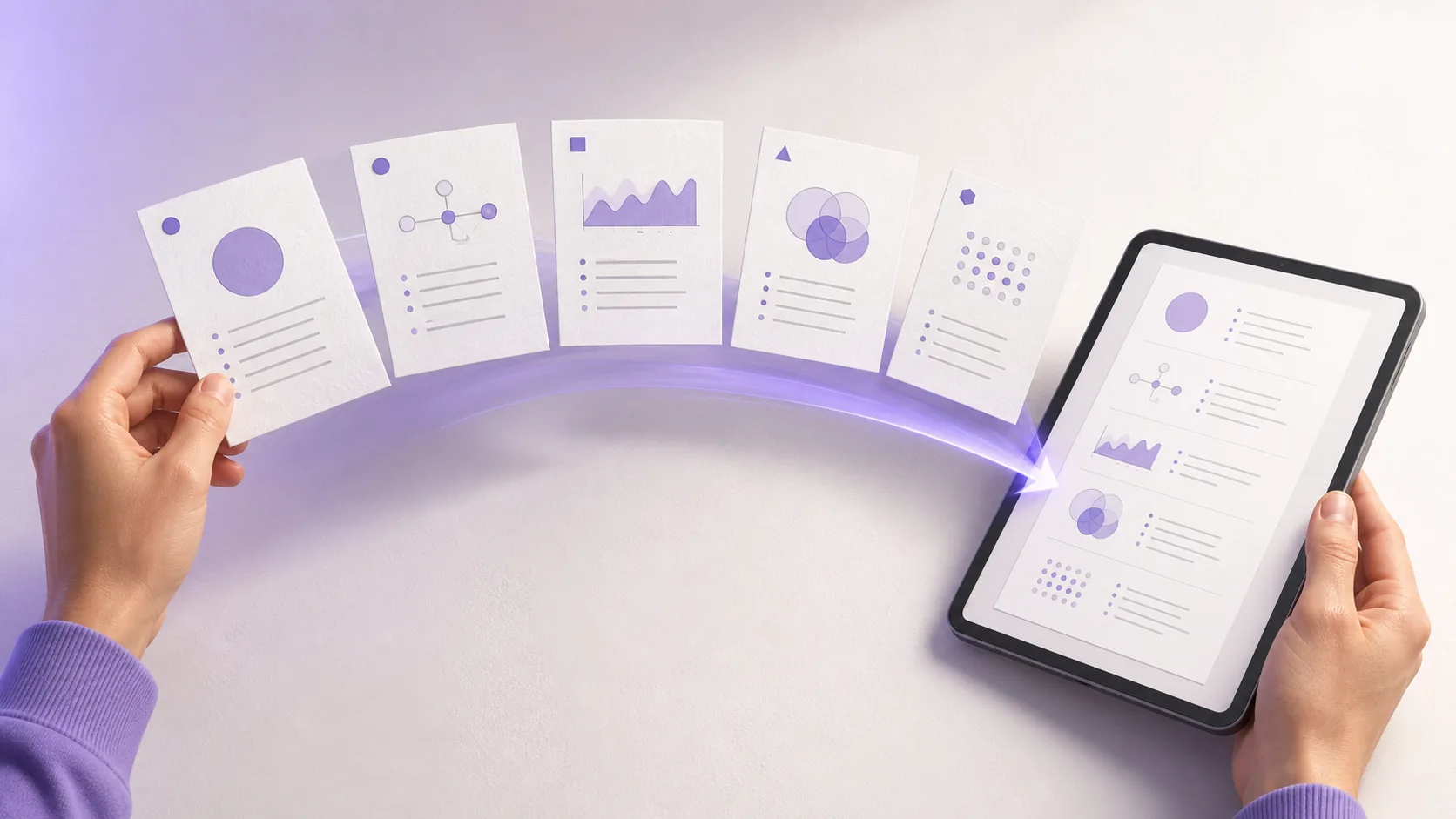
To export multiple notes as one PDF, first select the notes that serve one clear purpose. Check their titles, source details, and important facts. Put the notes in an order that helps the reader understand the topic. Export the selection, then open the PDF and test its headings, page breaks, links, diagrams, and reading order.
Keep the original notes separate. The PDF should be a portable revision pack, handout, or reference document. It should not become the only copy of your study work.
Quick answer: Select one focused set of notes, arrange it from foundation to application, verify each note, export the selection as one PDF, and inspect the actual file before using or sharing it.
When should you export several notes as one PDF?
One PDF helps when several notes belong in the same reading session or deliverable. You might need an offline exam pack, a tutorial handout, a project reference, or a printable set of checked explanations.
A combined PDF can help with tasks such as:
- revising one exam objective across several lectures
- reading a lecture, course reading, and worked example in sequence
- giving a classmate a fixed set of approved notes
- printing selected material without printing a whole course library
- preserving a dated copy of project research or revision notes
Do not export everything simply because you can. A complete semester may contain unrelated topics, drafts, private comments, and source material that another reader does not need. A smaller document is easier to inspect and replace when one note changes.
The useful unit is not “all my notes.” It is “the notes needed for this purpose.”
PDF or Markdown: which format should you choose?
Choose the format from the next task, not from habit.
| Need | Better starting format | Reason |
|---|---|---|
| Print or read a fixed document | The document keeps a stable page layout | |
| Send a finished revision pack | The recipient gets one file with a clear order | |
| Continue editing in a text workflow | Markdown | The content remains text-based and easy to revise |
| Move headings and lists into another compatible tool | Markdown | The structure remains available for further work |
| Preserve the study library itself | Neither export | Keep the original notes in their library |
BrainDen can export selected notes as one PDF or Markdown document. The original notes remain separate and editable. Use the multi-note reading feature to review the selection before you create the export.
How to export multiple notes as one PDF
1. Define one purpose and one reader
Write one sentence that describes the finished document.
Examples:
- “A revision pack for the cardiac cycle exam objective”
- “A checked handout for Thursday's economics study group”
- “A project reference containing only approved research notes”
Then identify the reader. You may be the only reader. The reader might also be a classmate, tutor, project member, or study group.
Purpose and reader control the scope. A personal revision pack can include recall prompts and unresolved questions. A shared handout should remove private comments and explain abbreviations that only you understand.
2. Select notes that contribute something specific
Start with the smallest useful set. Give every included note a role.
For an exam topic, the set might contain:
- a core lecture note that defines the topic
- a reading note that adds evidence or detail
- a tutorial note with a worked example
- a feedback note that corrects a common mistake
- a practice note with questions to answer later
Leave out a note when it only repeats material already covered. Also leave out material that belongs to a different objective.
If the useful notes live in several folders, do not copy them into a new permanent folder. Select them across the library. Our guide to combining lecture notes for exam revision explains how to build a topic selection while keeping every original intact.
3. Check every note before export
An export preserves errors as efficiently as it preserves good notes. Check the source notes before you create the file.
Review these items:
- names, dates, formulas, units, and specialist terms
- direct quotations and their page or timestamp references
- headings that describe the actual content
- links that still open the intended destination
- diagrams, tables, and images that carry essential meaning
- generated text that needs comparison with the original source
- comments or source material that should not enter a shared document
Mark uncertainty clearly. Do not turn an unresolved point into a confident statement because the PDF looks finished.
4. Give each note a useful title
The folder path may disappear from the export. Each note title must work as a document signpost.
Weak titles include:
- “Week 5”
- “New note”
- “Reading”
- “Final version”
Stronger titles state the topic and note type:
- “Cardiac cycle | Lecture explanation”
- “Pressure-volume loop | Worked example”
- “Cardiac conduction | Textbook evidence”
- “Common exam errors | Tutorial feedback”
A clear title helps the reader scan the PDF. It also makes a later correction easier to trace back to the right original note.
5. Put the notes in a learning order
Folder order is not always reading order. Arrange the selection around the reader's task.
A reliable study order is:
- scope and key question
- foundation or definition
- process, model, or main argument
- evidence and examples
- limitations, exceptions, or corrections
- practice questions or next actions
Chronological order works for a historical sequence or a staged process. Source order works when a course requires you to follow one text closely. Comparison order works when each note represents one theory, case, or method.
Read the selected notes continuously before exporting them. Check whether a term appears before its definition. Look for repeated introductions and abrupt changes of topic. Adjust the selection or order when the reading path feels unclear.
6. Preserve source context
A PDF revision pack should remain traceable to its sources. Keep enough information to reopen the lecture, reading, video, or document behind each note.
Include what the task needs:
- author or lecturer
- source title
- page, slide, or timestamp
- publication or lecture date
- link or citation when permitted
- a label for your own interpretation
An internal note link does not replace an academic citation. Follow the citation method required by your course when the PDF supports assessed work.
7. Export the selected notes
In BrainDen, select the notes that belong in the pack. Open the continuous multi-note view and confirm the order. Then export the selection as one PDF.
The export creates one portable document. It does not merge, delete, or overwrite the original notes. You can still edit each original note and create a new export later.
Use a specific file name. Include the course, topic, purpose, and date when they help.
For example:
BIO204-cardiac-cycle-revision-2026-08-18.pdf
Avoid names such as “notes.pdf” or “final-final.pdf.” A precise name makes the file easier to identify outside your study app.
8. Inspect the finished PDF
Open the exported file instead of assuming the export succeeded. Check the beginning, middle, and end. Then inspect every page with a diagram, table, formula, or long link.
Confirm that:
- every selected note appears once
- the note order matches the intended reading path
- headings and lists remain recognizable
- page breaks do not hide or separate important content
- equations and specialist characters display correctly
- images remain readable at normal zoom
- links open the intended pages
- the file name and document title identify the pack
Accessibility also needs a direct check. W3C guidance explains that a PDF needs a logical reading and tab order for keyboard and assistive-technology users. W3C also recommends a descriptive PDF document title and correctly structured list tags. These techniques do not replace a full accessibility review, but they give you concrete items to test.
When the document will be shared, ask one recipient to open it on the device they normally use. A PDF that looks correct on your laptop may still have small diagrams, weak contrast, or an awkward reading order on another screen.
Worked example: one anatomy revision pack
Imagine a student who needs to explain the cardiac cycle and interpret a pressure-volume loop.
Their library contains twelve related notes across anatomy, physiology, and tutorial folders. They select six:
- heart chamber anatomy
- cardiac conduction system
- phases of the cardiac cycle
- pressure changes and valve movement
- pressure-volume loop example
- tutorial mistakes and practice questions
The student excludes a broad cardiovascular glossary and two unrelated clinical case notes. Those files add length but do not answer the objective.
Next, the student checks the labels, units, and phase names against the approved course sources. They rename “Tutorial 4” as “Cardiac cycle | Common exam errors.” They place anatomy before function and the worked loop after the process explanation.
The student reads all six notes in one continuous view. One term appears before its definition, so they change the order. They then export the selection and open the PDF. The final check finds a diagram that is too small, so the student returns to the source note, improves it, and creates a new export.
The six original notes stay in their folders. The PDF becomes a dated study pack for this exam objective.
How to share the PDF without sharing too much
An exported file is a copy. Changes to the original notes will not update a copy that another person already downloaded.
Before sharing, remove material the recipient does not need. Check private comments, personal information, restricted course files, full transcripts, paid readings, and unpublished group work. Access to study material does not always include permission to redistribute it.
Send a short message with the file. State its purpose, date, source limits, and whether it replaces an older version. If the content will change often, a controlled note or folder link may fit better than a fixed PDF. See our guide to sharing class notes without exposing source material before sending source-connected material.
Common mistakes when combining notes into a PDF
Exporting a whole course for one task
Large exports hide the useful path. Select the notes that answer one objective.
Fixing the PDF instead of the original notes
Correct the source note when possible. Then create a new export. This keeps the library and future files consistent.
Losing source details
A concise note still needs a route back to important evidence, quotations, diagrams, and corrections.
Treating visual polish as verification
A clean PDF can contain an incorrect formula or an unsupported claim. Check content before layout.
Skipping the recipient test
Open the actual file on a second device. Test the links, zoom level, and reading flow.
Final export checklist
Before you use or share the PDF, confirm that:
- the pack has one purpose and one intended reader
- every selected note has a clear role
- titles work without their folder paths
- important facts and source references are checked
- the order moves from context to explanation and application
- the original notes remain separate and editable
- the PDF opens correctly and contains every selected note
- headings, lists, links, images, and specialist notation remain usable
- shared material contains only what the recipient should receive
- the file name and date identify this version
Prepare selected BrainDen notes for one focused PDF export, then continue with the recommended option for Web, iPhone & iPad, or Android.
See BrainDen more often in Google
Choose BrainDen as a preferred source for your Google Top Stories.
Turn your next source into a study system.
Create structured notes, flashcards, quizzes, mind maps, and active-recall practice from your own material.